Abstract
This process involves building up the dtCyber system from the ground-up -or- you may use one of the ready-to-run prebuilt systems. The following tutorial will walk the developer through the process of establishing a new baseline from the CYBIS Release 1 deployment performed by the NCC Distribution.
Developers are expected to understand:
- Networking fundamentals
- NOS 2 Configuration
- PLATO/CYBIS System Structure
001 - Establish Baseline
Check dtCyber Version
This tutorial was constructed from, and verified with dtCyber version 5.7.57 which adds console font/color selection and corrects a few operational issues.
Build dtCyber according to the installation instructions found on Kevin Jordan's DtCyber Github Repository.
WINDOWS USERS (BEFORE BUILDING)
On Windows, when allocating space on any disk device, the OS behaves in an appropriately “paranoid” mode and does not permit the newly allocated space to have anything but zeroes (to prevent data exfiltration through a malicious application just randomly allocating free disk space). So Windows WRITES zeroes to every byte being allocated BEFORE the application can read it. This accounts for the long times required when initializing the 10 disk containers required for the base install.
The behavior is completely different for directories that have the ‘compressed’ attribute set because unallocated disk blocks don’t physically exist and are presumed to be presented as “zeroes” to the controlling application when they are read, but don’t physically exist on disk. In other words, an “X” GB size file, that has only 1 non-zero byte in it, takes up almost no actual space on disk.
There are options:
- On modern disks (non-SSD), The I/O time required to write 5GB of zeroes (for the 10 disks) takes approximately 20-40 seconds depending on the device speed. Therefore, it is safe to set the wait time in installer's promise chain to 40 seconds in file
NOS2.8.7/base-install.jsline 81.- From:
.then(() => dtc.sleep(2000))
- To:
.then(() => dtc.say("Starting DTCyber and allocating space for new packs..."))
.then(() => dtc.sleep(40000))
- On SSDs, Windows will STILL write zeroes to the newly allocated, uncompressed space, but it will happen much more quickly.
- On Windows compressed folders, the allocations will happen instantaneously.
It is recommended to set file compression 'on' for the disks directory, prior to doing install basic.
[sudo] node install [basic | full | (readytorun | rtr) [<image name>]][(continue | cont)]
  basic      : install a basic system from scratch without any optional products
  full       : install a full system from scratch with all optional products
  readytorun : (alias rtr) install a ready-to-run system image
               <image name> is one of:
                 nos287-full-865       : full NOS 2.8.7 system running on a Cyber 865 (default)
                 nos287-full-875       : full NOS 2.8.7 system running on a Cyber 875
                 nos287-full-875-beast : full NOS 2.8.7 system running on a Cyber 875
                                         with 16M ESM and four 885-42 disks
                 nos287-most-175       : full NOS 2.8.7 system (except CYBIS) running
                                         on a Cyber 175 with four 885-42 disks

  continue   : (alias cont) continue basic or full installation from last point of interruption
1.1 Ready to Run Installation
Choose Your Installation Method
Choose which one of the two following installation methods is most suitable for your needs. In any case, remember that you are building CYBIS distributed with NOS2.8.7 and this tutorial series relies on your understanding of that part of the repository.
dtCyber commands and file locations as presumed to be relative to the NOS2.8.7 directory.
If your objective is to have a fully-functional hobbyist system, start with this option.
The “Ready to Run” Installation provides the full set of functionality on a set of virtual disk devices that are of the same type, while also providing the maximum amount of memory possible.
This configuration is a “good” starting point but may require some additional tweaking after initial setup.
[sudo] node install rtr nos287-full-875
1.2 Tailored Installation
If your objective is to have a fully-functional dedicated PLATO system, start with this option.
Tailored Installation
Using this installation option is highly preferred if your objective is to get the best performance out of a running PLATO (CYBIS) environment. The additional overhead of the full complement of networking components can result in less symmetrical time slices in the shared PLATO Terminal environment.
A less feature rich, but more responsive configuration for purposes of running a shared PLATO environment may be built manually by starting with the basic configuration. This method performs a build of NOS from “scratch” into a robust installation supporting 128 terminals.
[sudo] node install basic
This will install:
- Automated Cartridge Tape Facility
- IAF (InterActive Facility) subsystem
- Network Access Method
- NOS 2.8.7 Base Operating System
- NOS 2.8.7 Operating System Source Texts
- FTP Client and Server
Then, install the optional components individually:
operator> install cybis games lang misc graphics
This will install:
- CYBIL and Software Engineering Services tools
- CYBIS (Base and Lessons)
- Console Games (Various Chess versions)
- ALGOL5, ALGOL68
- GPLOT and ULCC DIMFILM graphics library
- ICEM Design/Drafting and GPL compiler
- Intel 8080 cross-tools (CPM80, INTRP80, MAC80, PLM80)
- Task scheduling utility (like Unix cron)
- SPSS-6000 V9 - Statistical Package for the Social Sciences
- Pascal4
- PL1
- SNOBOL
- University of Texas LISP
Enabling greater memory capacity for the maximum PLATO configuration profile will be a desirable outcome. Follow instructions for Upgrading Cyber 865 to Cyber 875 . This configuration runs well and delivers great performance on virtual disk containers that are consistent with the CYBIS masterfile containers.
Make A Deadstart Tape
After performing the above installations, the deadstart tape must be created. The changes are not automatically applied to the current deadstart tape.
DtCyber Operator> st
show tapes to verify that the current deadstart tape is attached. Its name should be tapes/ds.tap. If it's not already attached:
 DtCyber Operator> ut 13,0,0
 DtCyber Operator> lt 13,0,0,r,tapes/ds.tap
you may proceed to mounting the new deadstart tape by issuing the command:
DtCyber Operator> lt 13,0,1,w,tapes/newds.tap
then issue the command to make the deadstart tape using the Installation Product File:
DtCyber Operator> mdt
Once this is complete, shutdown dtCyber normally and rename:
- tapes/ds.tap –> tapes/ods.tap
- tapes/newds.tap –> tapes/ds.tap
You may then test the deadstart by reinitializing dtCyber.
1.3 Verify Installation
Once the installation is complete, you must test that everything is working correctly.
Perform a deadstart and let the normal initializations quiesce.
Start CYBIS (PLATO) by invoking the start-up procedure at the NOS console:
1.3.1 Configure PTerm
PTerm needs to have a configuration profile so it can connect to your local instance of dtCyber. It is assumed that you are using ALL of the defaults provided by the NCC distribution.
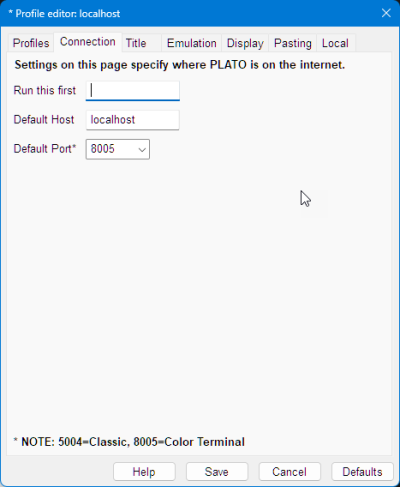
On the PTerm Connection Editor use the loaded defaults and specify, on the Connection tab, the localhost on port 8005.
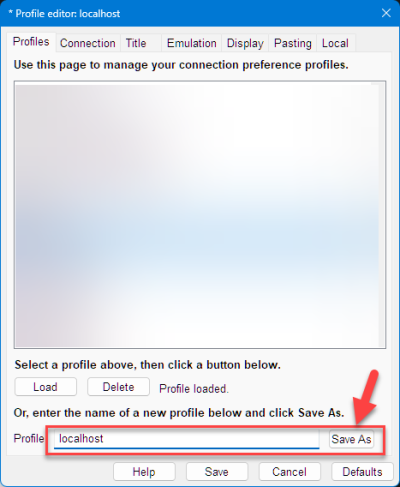
Then return to the Profiles tab. On the bottom of that tab specify the name of the connection profile (localhost is shown in the example) and click Save As to store the profile.
Finally, when connecting to the running instance of CYBIS, you should see the following:
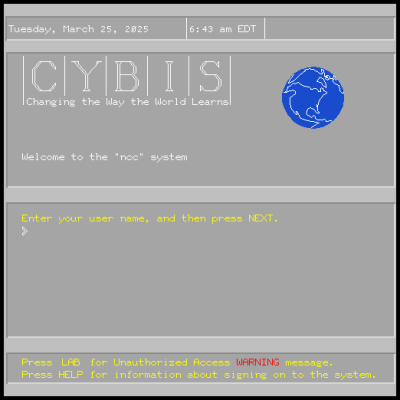
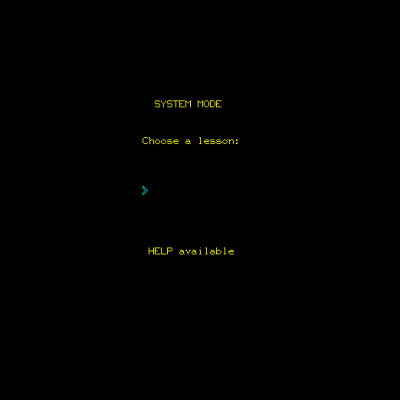
Log in as admin group s with a password of passme. The following should appear:
1.4 Cleanly Shutdown
CYBIS stores a considerable amount of critical information in ECS1) and must be properly shut down prior to shutting down dtCyber. All users must be backed-out of CYBIS to ensure proper record keeping. This may be done in one of two ways. Using the system console 2) or through a PTerm session as shown below:
While logged in as a system user.
From the SYSTEM MODE display:
- Choose lesson
1(this is a “hot key” on theSYSTEM MODEdisplay that takes you directly to lessonsysopts)S Y S T E M O P T I O N S 1 Display a permanent message on selected screens 2 Broadcast an immediate message to all users 3 Backout options (full system or selected users) 4 Inhibit Lessons A Condensor load / drop E PNI load - Select option
3Backout options (full system or selected users)B A C K O U T O P T I O N S SHIFT-LAB Full system backout (60/30/10 sec. warnings) SHIFT-HELP Immediate full system backout SHIFT-DATA Full system "backon" DATA Single station backout/backon/status - Press SHIFT-HELP (Immediate full system backout)
- Press BACK to return to the
SYSTEM MODEdisplay - Press SHIFT-STOP to Log off.
On the NOS console:
On the dtCyber console:
Learning Path - Minimum Installation
If your objective was to have a minimum installation, you may conclude here. You now have a fully-functional instance of PLATO 3).
1.5 Upgrade Installation
Upgrade Path?
Upgrading an existing installation *is* possible but not recommended. The upgrade path requires that the installation is running no less than the CYBIS Release 1 baseline version as distributed by the Nostalgic Computing Center.
There are also important considerations referenced by, but not addressed in this article.
Look for the notes along the way for specific instructions when attempting a manual upgrade.
Before Proceeding
Completion of this procedure expects that a working CYBER 875 Configuration is in-place and fully-functional.
Checkpoint Backup
- Ensure that everything initializes correctly.
- It is highly recommended that a snapshot of the new system be taken prior to the next steps.
- Copy the
./disksdirectory - Copy the
./tapesdirectory - Copy the
./*.ini,./*.ovlandsite.cfgfiles
- It is also highly recommended that you create a
deadstartdirectory (at the same level as thecyber.inifile) for storage of all future deadstart tapes.
Proceed to 002 - Begin Customization