007 - Introduction to CYBIS
CYBIS (R2) Operation and Usage (Virtual Book)
This Virtual Book contains chapters organized in a suggested order but you are free to select whatever topics address your needs best.
This Quick Reference is not an exhaustive guide to CYBIS but covers general concepts which must be understood in the operation and usage of PLATO.
Other material available on this site, and/or Bitsavers will have much more depth. Relevant documentation will be linked into these articles at appropriate places, and references to suggested lessons will be highlighted in these guides.
Preparatory Reading
The guide File OPGUIDE (PLATO Operations Guide) contains an in-depth description of all PLATO operations-related activities and concepts.
Although the vast majority of the documentation is irrelevant in this modern context, the following sections should be read before proceeding:
The guide File SUPDOC (Systems Programmer's Notebook) has a considerable amount of historical value, but little value in today's operations.
In particular, the following sections should be read before proceeding:
CYBIS Keyboard
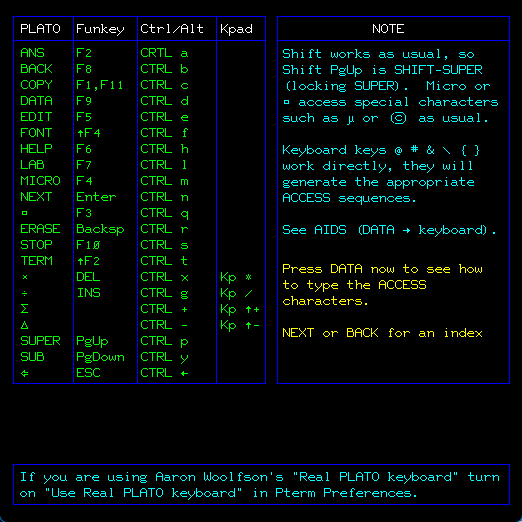
The CYBIS keyboard has a set of special keys not found on modern PC keyboards. For Pterm key mappings on modern keyboards click on Help and then select “Pterm keyboard”. As a mnemonic, most (but not all) of these function keys are accessible as control-x where x is the first letter of the function key name (for example, control-d for the DATA key). Note also that all the function keys except for TERM come in shifted variants. For example, control-shift-S will produce the SHIFT-STOP key.
Sometimes in documentation or help text you will see a “1” after the key name to indicate the shifted version of the key. For example STOP1 represents SHIFT-STOP.
Here is an incomplete list of some of the most important keys:
| CYBIS Key | Description |
|---|---|
NEXT | Pressing NEXT is similar to Enter on modern keyboards and is typically used to indicate to CYBIS that you have finished typing an answer to a prompt. |
SHIFT | The SHIFT key is always used in combination with another key by holding down the SHIFT key and while still holding it down pressing another key. It allows you to enter upper case characters, but also allows numeric, punctuation and function keys to have to values. Of special interest are some of the “shifted” function keys like SHIFT-NEXT or SHIFT-STOP or SHIFT-DATA. |
SHIFT-STOP | This key combination is used typically used to exit out of a CYBIS lesson or when in the System Mode or Author Mode display to log out of CYBIS. |
HELP | Pressing HELP provides online help in most (but not all) contexts. If the help extends of multiple pages, then NEXT will page forward and BACK will page backward. Normally after the last page of help the CYBIS lesson redisplays the original page HELP was pressed in. |
DATA | When you enter a CYBIS lesson name on the System Mode or Author Mode screen the DATA key executes the lesson. In this context the NEXT key invokes the editor for the lesson (but still gives you the option to execute the lesson by pressing DATA). This takes some time to get used to if you are new to System or Author Mode in CYBIS. I still often press NEXT instead of DATA when trying to run a lesson. |
BACK | Pressing BACK typically takes you back one step, but is also often used to browse backwards (e.g. in Notes files). |
Interesting CYBIS Lessons
There is a range of CYBIS lessons for everyone. Invoke a lesson by typing the lesson name in the System or Author Mode screen followed by DATA.
You will see a warning from many lessons which have not yet been “condensed” saying in red: “NO BINARY – Lesson must be condensed”. It then suggests to press DATA to condense or NEXT to choose a new lesson. This is a known issue with this version. Simply press DATA and the lesson will condense and run normally.
Information about CYBIS
These lessons provide general help about CYBIS, how to write Tutor lessons, the NOS operating system, how to operator CYBIS etc.:
| Lesson | Description |
|---|---|
0introtop | Introduction to keyboard and function keys |
0introtur | Introduction lesson to the TUTOR language |
0notesintr | Introduction to using notes |
0keyboard | Introduction to using the PLATO keyboard |
aids | Main documentation repository |
sysaids | Documents system commands available only to administrators |
s0ascers | Documents the ASCII protocol between CYBIS and Pterm |
Games
| Lesson | Description |
|---|---|
2avat | Avatar (note the leading space) |
2dice | Dice game |
2tkm | The Kings Mission game |
0adgame | Advertising game |
0aerogames | Aerospace engineering games |
0airfight | 3D simulation of a dogfight among jet fighters |
0ants | Aumbers game |
0areneg | Chemistry game |
0backgam | Backgammon |
0bagels | Numbers guess game |
0battleshi | Sea Battle – attempt to destroy Plato’s fleet |
0bees | Bee hive |
0bingo | Game of bingo |
0biocycles | Biorythm |
0ccttt | Tic Tac Toe |
0checkers | Checkers |
0cocos | The coconut story |
0concentra | Concentration games |
0contract | Contract bridge |
0crball | Baseball betting |
0crosswdn | Crossword puzzle |
0darts | Darts |
0deutsch | The trucking game |
0dogfight | Dog fight game |
0drib | Fractions basketball |
0edl | Horse race |
0emphelp | Help for 0empire |
0empire | Star Trek like game. |
0fishwar | Air war simulation |
0freecell | Game of cards |
0fun | Maths game |
0hangman | Ordeal of a hangman |
0hangspy | Hang a spy |
0hifive | A game of chance and skill |
0hunt | Deer hunt |
0mate | Checkmate |
0mazewar | Maze war |
0mlcnim | NIM game |
0moonbattl | Game of arithmetic knowledge and speed |
0moonwar | Multiplayer shooting game |
0moria | Moria |
0mreact | Maths drill game |
0musgame2 | Key spinner game |
0musgame8 | Music concentration game |
0obs | Obstacle course |
0p106con1 | Vectors and kinematics contest |
0pind | Decimal pinball |
0pinw | Pinball |
0playgo | Game of GO |
0pogo | Game of splash |
0port | Space port |
0pzk | Tank war |
0racetrack | Racetrack |
0racing | Racing games |
0react | Reaction game using touch panel |
0sea | Torpedo numbers game |
0solitaire | Card game with touch panel |
0swat | |
0syng | Synthesis race |
0syng2 | Synthesis race (another one) |
0tictac | Tic Tac Toe |
0tokens | Token Solitaire |
0tricks | Dr. Lobo’s psychic experiments |
0ttt | Tic Tac Toe |
0tubs | Pick a tub (maths game) |
0vegas | Learn to play Keno |
0wallstree | Invest in securities |
0wmg04 | Probability game |
0ychess1 | Chess program |
2mahjongg | Mahjongg |
2nova | Star destroyer |
labyrinth | Labyrinth |
mahjongg | Mahjongg |
wilderness | Fantasy simulation |
System Administration and Operator Utilities
| Lesson | Description |
|---|---|
operator | system account/file options |
accounts | main lesson for editing CYBIS accounts |
s | manage Group s (signons are created/changed here) |
author | manage Group author (signons are created/changed here) |
ipedit | system operations parameters |
u | system utilities menu |
user | list of users active on the system |
Other
catalogs | shows a list of CYBIS courseware |
prints | prints a CYBIS file on a NOS printer – wait for the print to finish (BIO is idle and the NOS DSD I-display shows LQ030 is idle) and then remove the listing via the Operator Interface command “rp 7,7”. |
search | search files for strings |
Writing Tutor code in CYBIS
In addition to the resident documentation, the author of The TUTOR Language, Bruce Arne Sherwood has granted the community free access to his work which may be found within the section The TUTOR Language.
To get started with Tutor programming I recommend working through the lesson introtutor Introduction to Tutor.
This reference will be of help: Summary of TUTOR Commands and System Variables
To create more lessons, sign on as user “admin”, group “s” and password “passme” and at the System Mode prompt type the account name “cybdeva” followed by NEXT. Then NEXT for “file management options” and then “1” for “Create a file”. Select option “a” to create a lesson, type the file name and NEXT and then again NEXT when prompted for “Enter masterfile” (don’t care) and “5” when prompted for “Enter number of parts”. This will give you a reasonable size lesson file to experiment with.
Continue to Operator Interface